Configuring call recording and web tab
Call recording control and web tab are available with the Bria Teams subscription.
Under the Settings and Preferences tab, team admins can configure some features for their team members.
After making changes in Bria Portal, make sure to tell your team members to log out of their app and log in again to see the changes.
Call recording
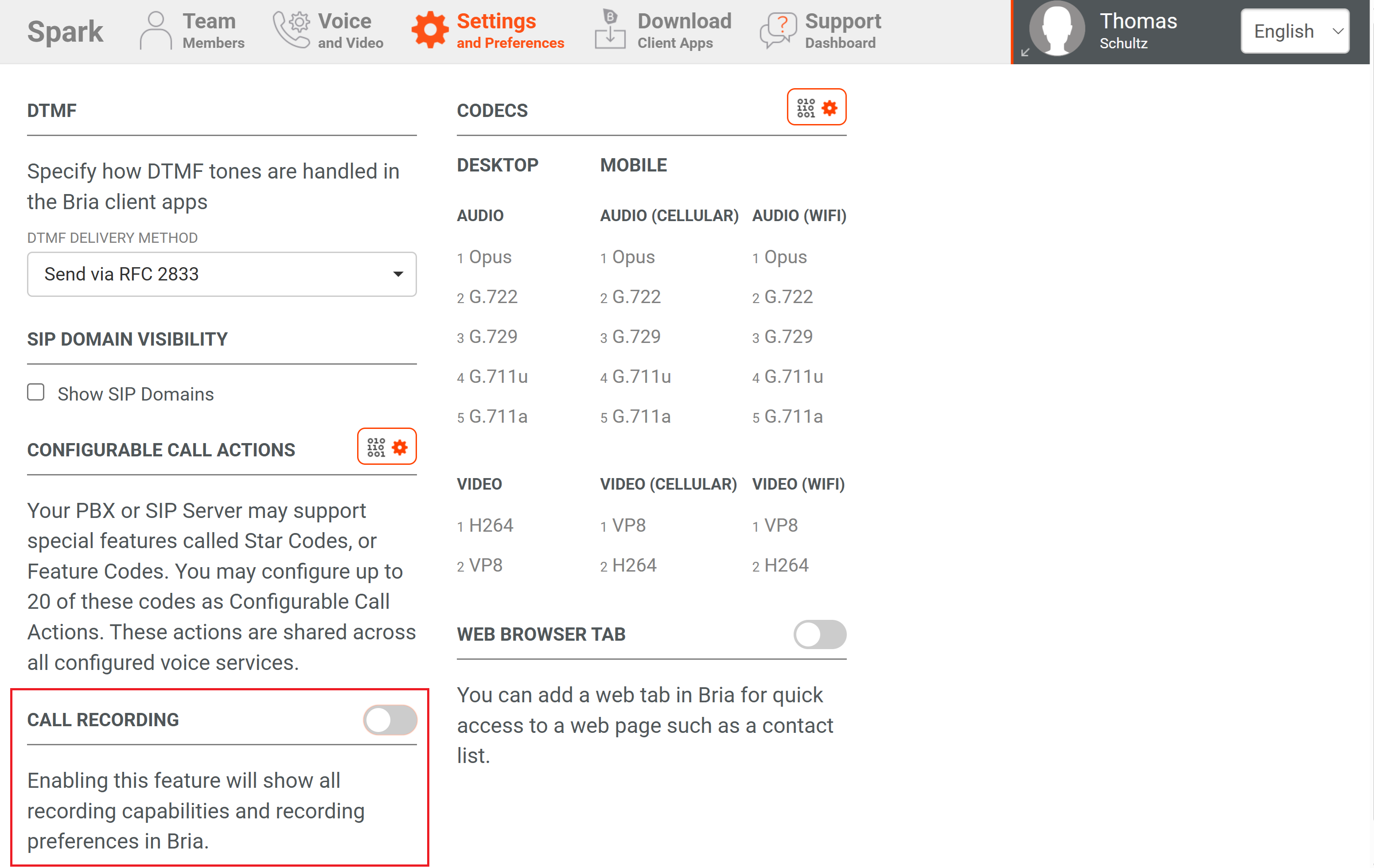
Toggle on to make call recording available in the Bria app. When available, each team member can record the audio of their calls.
When off, they will not see any buttons or preferences for call recording in the Bria app.
This setting applies to all team members in your account. It's not supported to make it available only to select users.
More info on call recording
-
Bria plays a tone by default to indicate to the remote party that recording has started. On each device, team members can change the preference from a tone to an announcement "This call is being recorded".
-
Recording is saved on team member's device where recording is initiated.
-
Both desktop and mobile apps have a preference for auto record calls. Once the user enables this preference on each device, all calls on that device will be automatically recorded without the user to manually start recording.
Web browser tab
Add a URL to Bria so that team members can visit the page right within the app. You can add any URL that supports desktop browsers.
To add a URL
-
In the Bria Portal, go to the Settings and Preferences page.
-
Under the Web Browser Tab section, toggle on for the web browser tab and enter a name and a URL.

-
Click Send Web Browser Config.
-
Ask your team members to log out from the app and log back in.
-
Team members can access this URL on the additional tab on the desktop app (shown below), and under Settings on the mobile app.


 About this document
 ® logo are registered trademarks of CounterPath Corporation.