Configuring Common Contacts for your team
Common contacts are available with the Bria Teams subscription.
Add contacts your team members frequently dial, such as contractors, business partners, and favorite restaurants. Calls are made using your custom SIP account.
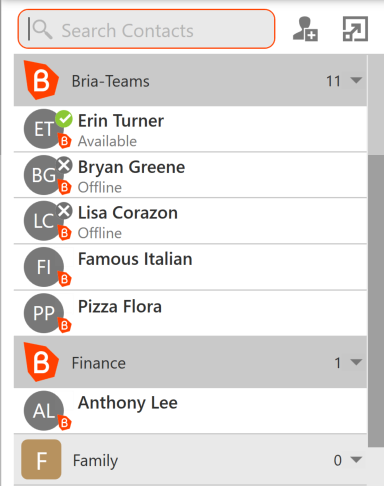
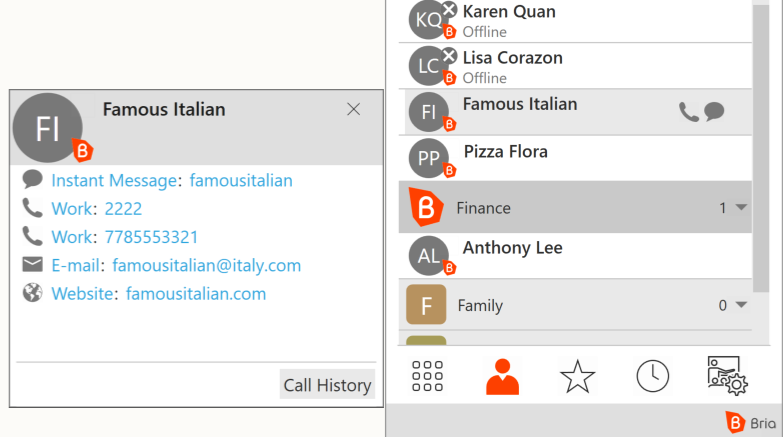
Common contacts appear in the Bria Teams contact list without presence. Team members can call common contacts but cannot exchange messages. The following example displays two restaurants under the Bria Teams contact list, as well as one contact under the Finance list.
Prerequisites
The common contacts feature requires the following:
-
The messaging feature must be enabled for your team. Although your team cannot exchange messages with common contacts, the messaging feature is required to display common contacts in the contact lists.
-
A custom SIP account with a SIP service of your choice must be configured for team members. The Team Voice account, which comes with the Bria Teams subscription, does not allow calling outside of your team.
Add common contacts to your team
Common contacts can be added to a team in two ways: using a CSV template, or adding manually in the Portal UI.
-
In Bria Portal, go to Settings and Preferences.
-
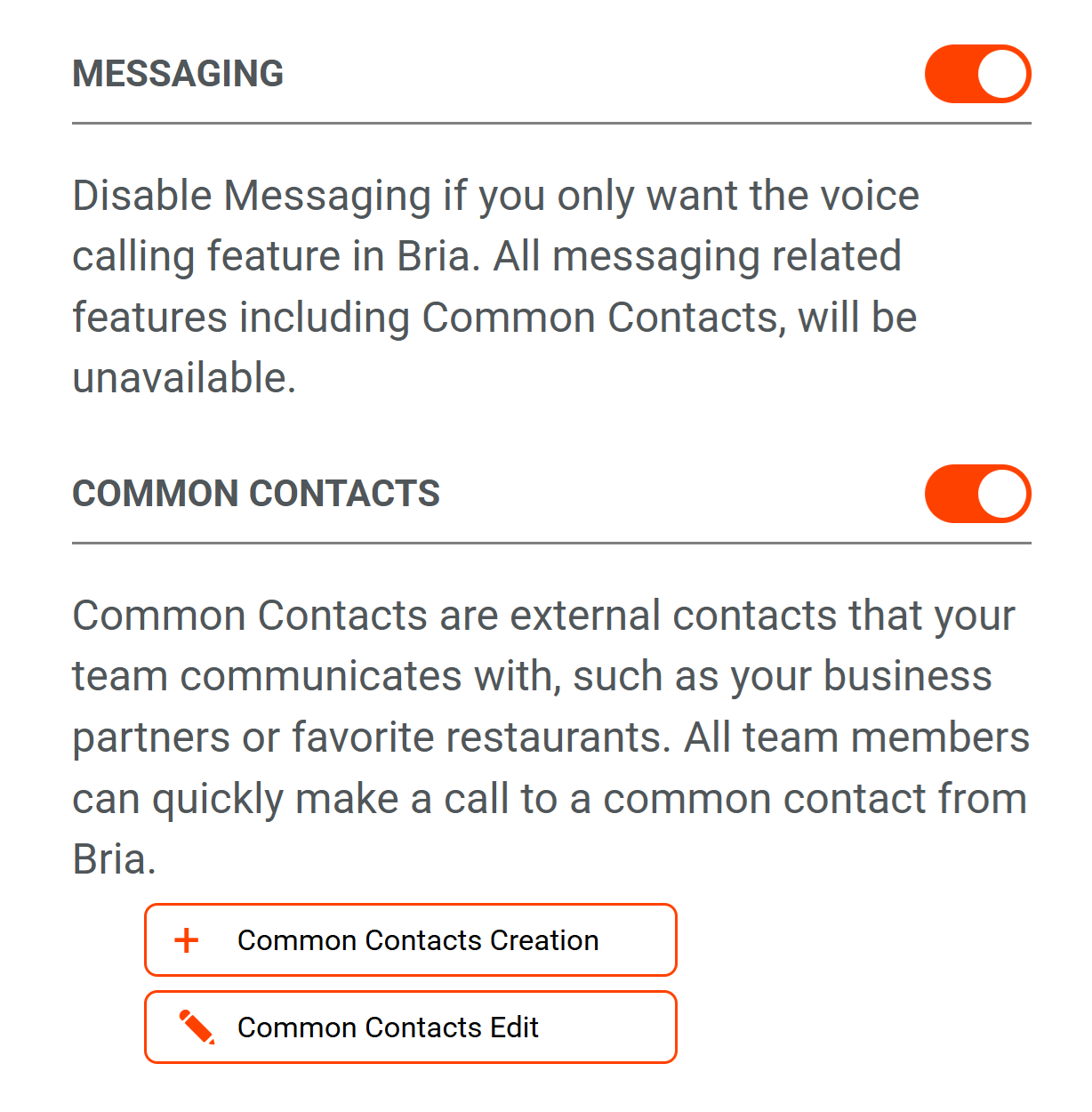
Make sure the Messaging feature is enabled. The toggle should display with orange.
-
Enable the Common Contacts feature.
-
Choose one:
-
To use a template, click Common Contacts Creation and download a template.
-
To add manually in the Portal UI, click Common Contacts Edit.
-
-
Add information about common contacts in the file or directly in the Portal. See below for details.
-
When done, click Save. Or save the file and upload it to Bria Portal.
The portal verifies the submitted information and highlights the fields with an error.
-
Correct errors if any, and click Save.
-
Make sure to log out of Bria apps and log back in to see the common contacts.
Ensure your team members know how to select the custom SIP account to dial out. Team Voice does not work for calling outside of the team. 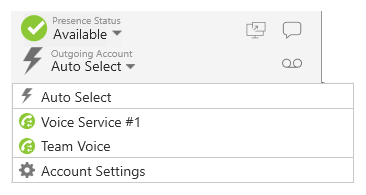
Common Contacts Fields
Here is a list of information for common contacts.
-
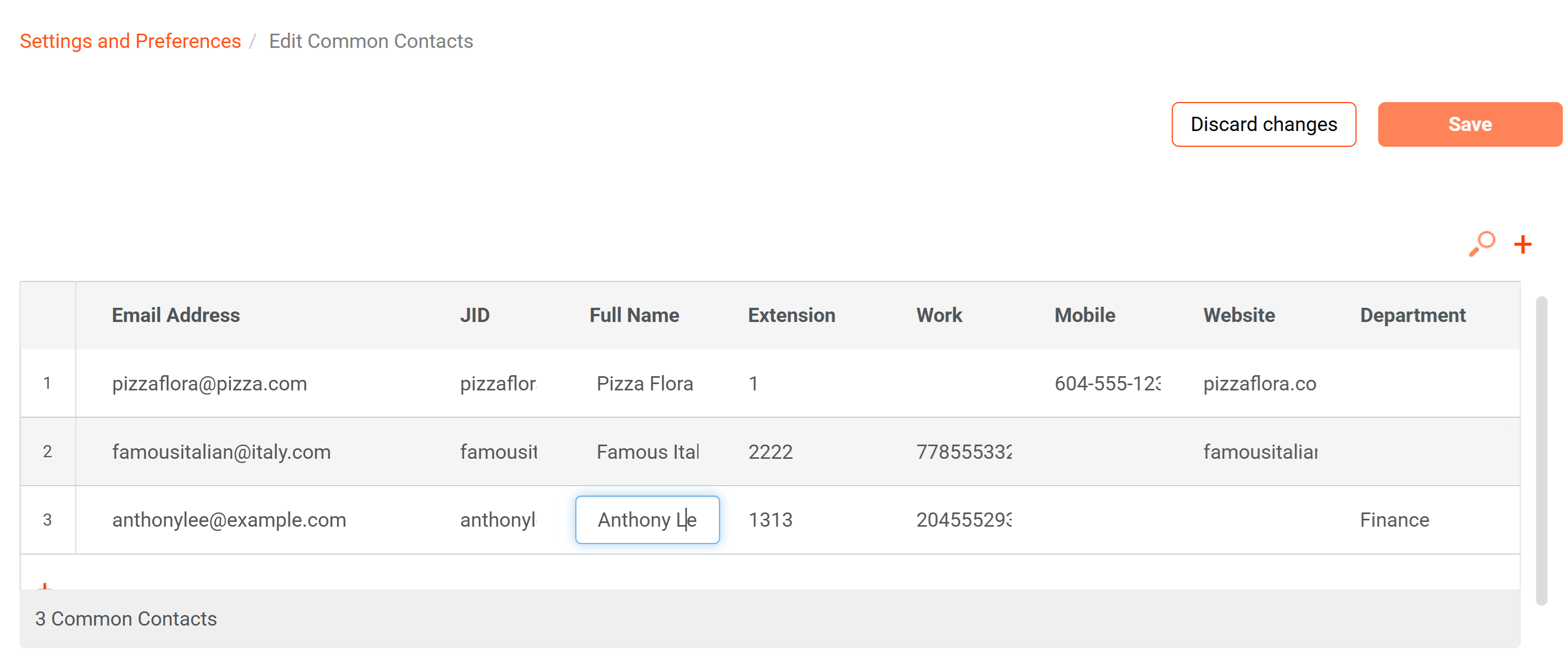
JID: Required. Type a name that's unique within your team, such as olivia1. Do not include space or special characters. JID does not appear in the contact list.
-
Full Name: Required. Appears in the contact list as well as details.
-
Email: Required. Appears in the contact details for team members to email.
-
Extension: Required. Add any number just to save an entry. This field won't be used by your team.
-
Work Number: At least one work or mobile number is required.
-
Mobile Number: At least one work or mobile number is required.
-
Website: Optional. Appears in the contact details for team members to open on their browser.
-
Department: Optional. When populated, Bria creates a separate contact list instead of adding the entry under the Bria Teams list.
For example, setting three contacts in the Portal (shown above) results in this app view (shown below).
Edit common contact details in the Portal
Change details of common contacts directly in the Portal.
-
Click Common Contacts Edit to open the list.
-
Make changes.
-
To change: Edit each field. The Portal verifies the input and displays an error.
-
To add a new contact: Click + and add information in each field.
-
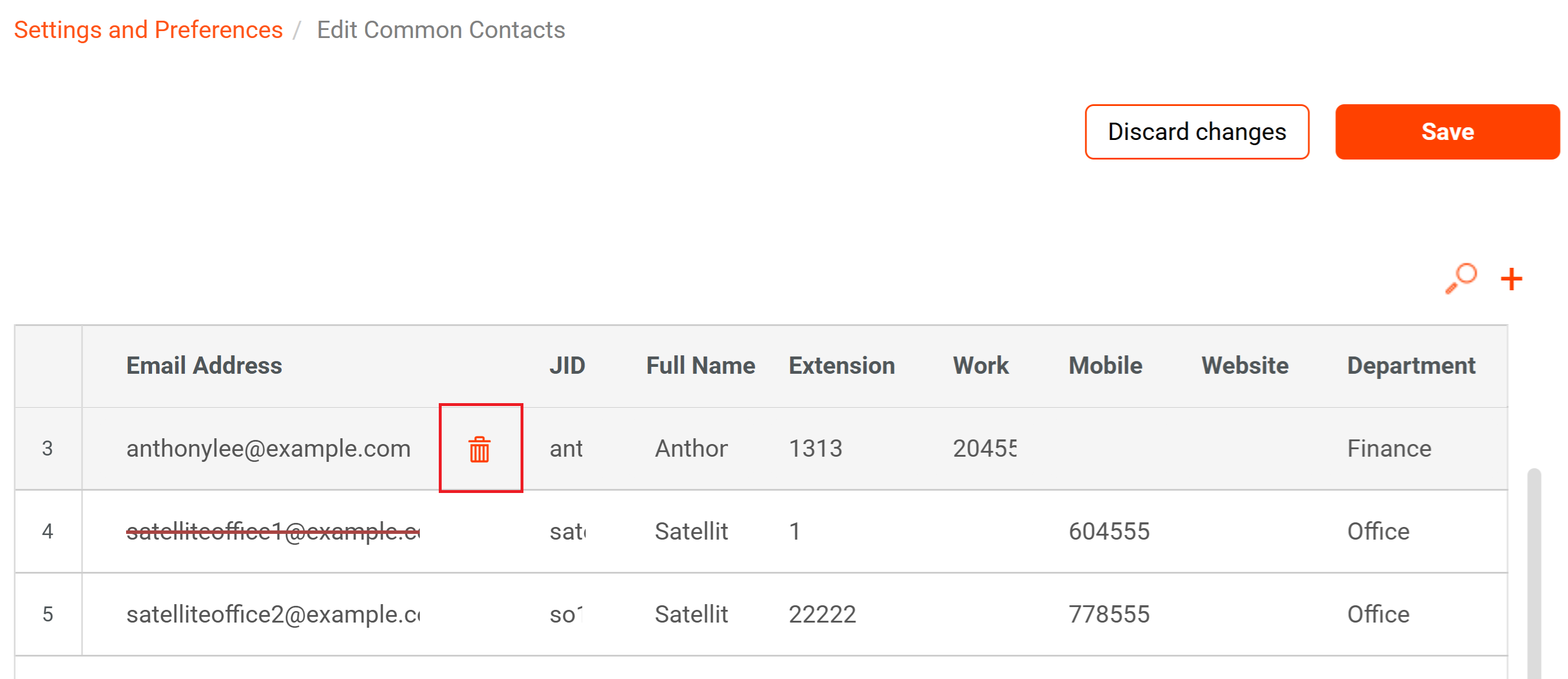
To delete a contact: Hover over the email address field of the entry, and click Delete.
-
-
When done, click Save on the top right corner.
-
Make sure to log out of Bria apps and log back in to see the changes.
Delete common contacts
To delete all common contacts:
-
In Bria Portal, go to Settings and Preferences.
-
Disable the Common Contacts toggle.
-
Make sure to log out of Bria apps and log back in to see the changes.
To delete one common contact from the list:
-
On the Settings and Preferences tab, click Common Contacts Edit.
-
Hover over the email address field of the entry you want to delete.
-
Click the Delete icon. Respond to the confirmation dialog.
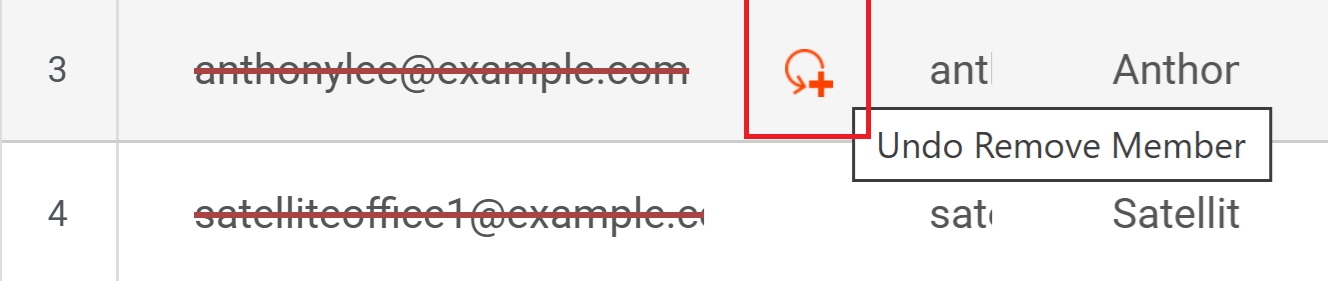
You can undo the deletion until you click Save. Hover over the entry you just deleted, and click Undo.
-
Click Save on the top right corner.
-
Make sure to log out of Bria apps and log back in to see the changes.

 About this document
 ® logo are registered trademarks of CounterPath Corporation.